

This feature is only available for Practice Enabled Users.
To get started
Navigate to ‘Practice Tools’ in the Main Menu
Click ‘Edit Practice Profile’
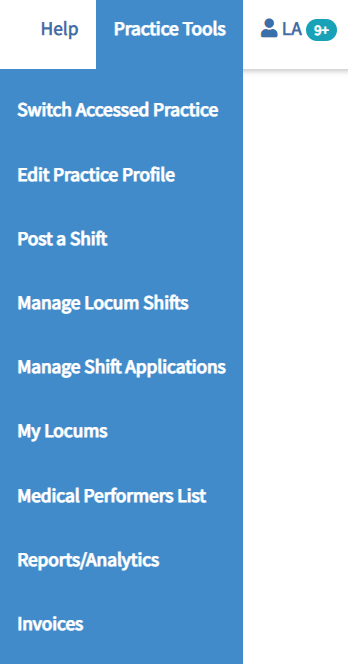
You will now see 4 Tabs containing different information.
Practice Details – Tab 1
This tab contains basic information about your Practice. Please complete all the data fields as it will form your profile which Locum Doctors and Permanent Job Seekers will see. Some of the information you provide here will form Job Descriptions that you create.
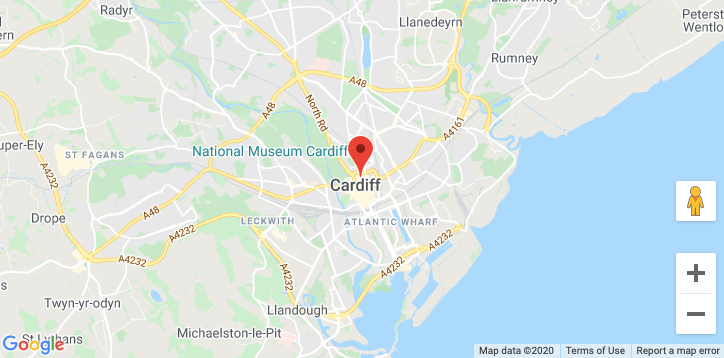
Map
If the Practices’ post code is shown on the map. If this isn’t accurate, you can Zoom on the Map using the ‘+’ and ‘-’ icons in the lower right hand corner of the map, and drag the red pin the precise location.
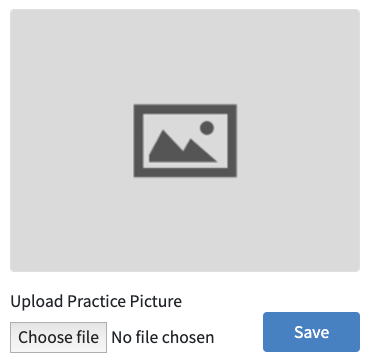
Practice Picture
To upload a practice picture, stat by clicking on ‘Choose File’
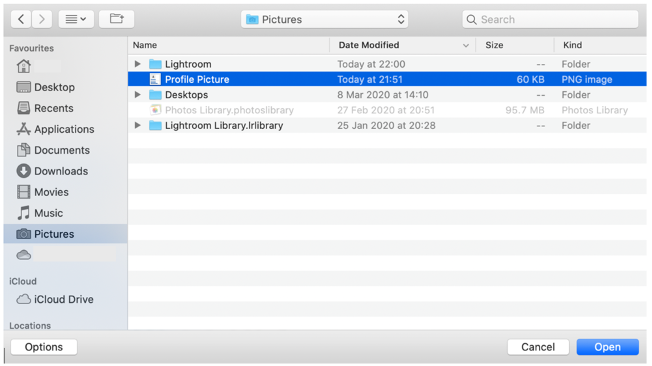
Selecting the picture and click ‘Open’
Click the ‘Save’ button Underneath the Picture
Additional Information – Tab 2
This tab contains more in depth information about the Practice, and again, this will create part of the job applications you create in future.
Practice Enabled Users – Tab 3
This tab contains two tables.
The first table shows Personal Users who have requested to become a Practice Enabled User.
The Second Table Shows a list of all the current Practice Enabled Users.
Any existing Practice Enabled User can Approve or Reject a request.
To accept or reject a request from a user, use the appropriate button in the right-hand column.

To Make a user a Primary Contact, use the ‘Make Primary Contact’ Button in the right-hand column.
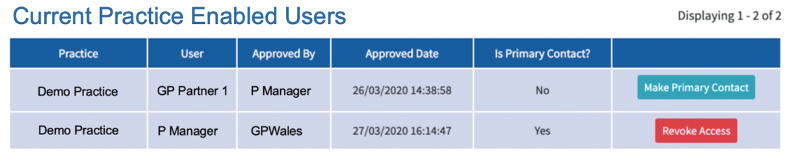
To revoke access from a user, use the ‘Revoke Access’ button in the right-hand column.
Locum Engagement – Tab 4
When engaging with a locum, both the Practice and the Locum must agree to the “Default Terms of Engagement.” These terms are standard terms used for every shift arranged via GPWales.
Please read the “Default Terms of Engagement” carefully.
If the practice wishes to add any additional Terms of Engagment, they can do so here by entering them into the text box.
If the practice wishes to amend any terms, please also include them in the text both.
If any terms in the text box is intended to supersede or replace any terms in the “Default Terms of Engagement,” please make that abundantly clear.
When you have entered any additional terms, click the ‘Save’ button.

Have we missed something you want to know? Have any feedback or still confused?
Get in touch with our Support Team: support@gpwales.co.uk or 0333 0111 899